
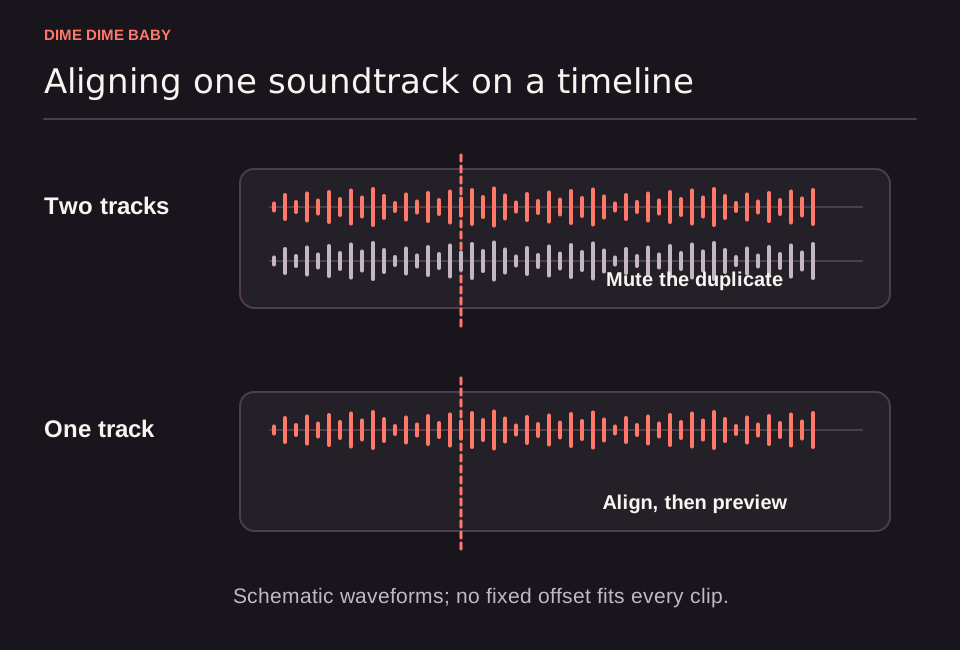
Illustration: Schematic editing timeline contrasting overlapping audio tracks above against a single selected soundtrack aligned to a visual marker below.
Mute duplicate tracks so only one song plays
Under the ai-dimedimebaby.app Terms of Service, a default soundtrack is added after generation, while the commercial "BbY WOW" recording is not guaranteed. Overlapping music occurs when your exported MP4 already contains a backing track and you layer a second song over it in TikTok or another video editor.
Choose one audio source and silence the extra layer before publishing:
- Keep the platform song: After you add the BbY WOW sound to your Dime Dime Baby video by choosing an available track in TikTok's Add Sound catalog, use the available volume controls to lower or mute the original video sound.
- Keep the MP4 soundtrack: Remove any extra song added in the social app and leave the original clip volume up. If muting a track leaves the entire video silent, read our guide on why a Dime Dime Baby video has no sound.
Match the audio start point to your clip's visual beat
According to our Terms of Service, AI generation can vary motion and framing from one output to another. Different audio uploads on social apps can also begin at slightly different points in a track. As practical editing guidance, align the music visually in your editor rather than relying on a fixed timestamp:
- Locate the main visual cue: Scrub through your 6-second or 13-second clip (see our Dime Dime Baby video length and specs guide) and pause on the main head turn, step, or gesture.
- Adjust the music start point: Use the available audio trim controls in your app or timeline editor to shift where the song begins until the vocal entrance meets that visual cue.
- Trim leading video frames if needed: If the dance movement starts late in the video, trim a short segment from the beginning of the clip so the motion starts on the beat.
Test your local export and platform preview separately
Do not spend extra credits running a new generation just to adjust audio timing. Our Terms of Service allow only one unresolved task per account and return generation credits once for a confirmed failed task or confirmed output moderation rejection; creative timing preferences alone do not automatically count as a confirmed task failure, while payment refund reviews remain separate.
Instead, check where the timing offset appears while preserving your files:
- Test on another player or device: Play your saved MP4 in a different media player or on another device to check whether the timing offset appears in the file itself or only inside one app.
- Keep your draft and test a fresh import: Preserve your original saved MP4 and keep your existing social app draft so you do not lose your edits. If the local MP4 plays in sync on your device and only drifts in the app preview, test importing the saved MP4 into a new post and attaching the sound fresh.
Sources & scope
External clips and music belong to their credited creators. Product guidance here describes this tool; it does not verify every other app using the meme’s name.
Suggest a correction